
By Krutie · Published
How to Animate a Flowchart
Why animate a flowchart?
A flowchart is a great way to explain a process, a decision, or a sequence of steps. But sometimes, presenting the entire flowchart at once can be overwhelming, especially when there are multiple paths and decisions to follow.
This is where animation can make a difference.
Instead of asking your audience to figure out where to look first, you can guide them through the process, one step at a time.
There are scenarios where animated diagrams work better than static ones. Progressively revealing shapes and connectors can make complex topics easier to understand, allowing your audience to piece together an entire concept or story as it unfolds.
Animation also gives you control over how your story is told. You decide what appears first, what follows, and which elements deserve attention together.
These are some of the reasons that led me to build Diagrams.Design — a tool where you can draw diagrams just like you would in traditional diagramming software, but also animate them right there, without leaving the same workspace.
And the best part? You don't need to work with a complicated animation timeline.
Let's see how it works.
Design your flowchart
Let's take a look at this simple flowchart. It has a Start node, a few Process nodes, a Decision node, and connectors showing the possible paths.

To animate it with Diagrams.Design, we only need to decide two things:
- How each element appears.
- When each element appears.
That's it. No keyframes to manage or timelines to arrange.
If you haven't created your flowchart yet, start by adding your shapes and connecting them. You can customise their colours, sizes, and styles until you're happy with the layout.
Once your flowchart is ready, we can bring it to life.
Choose how elements appear
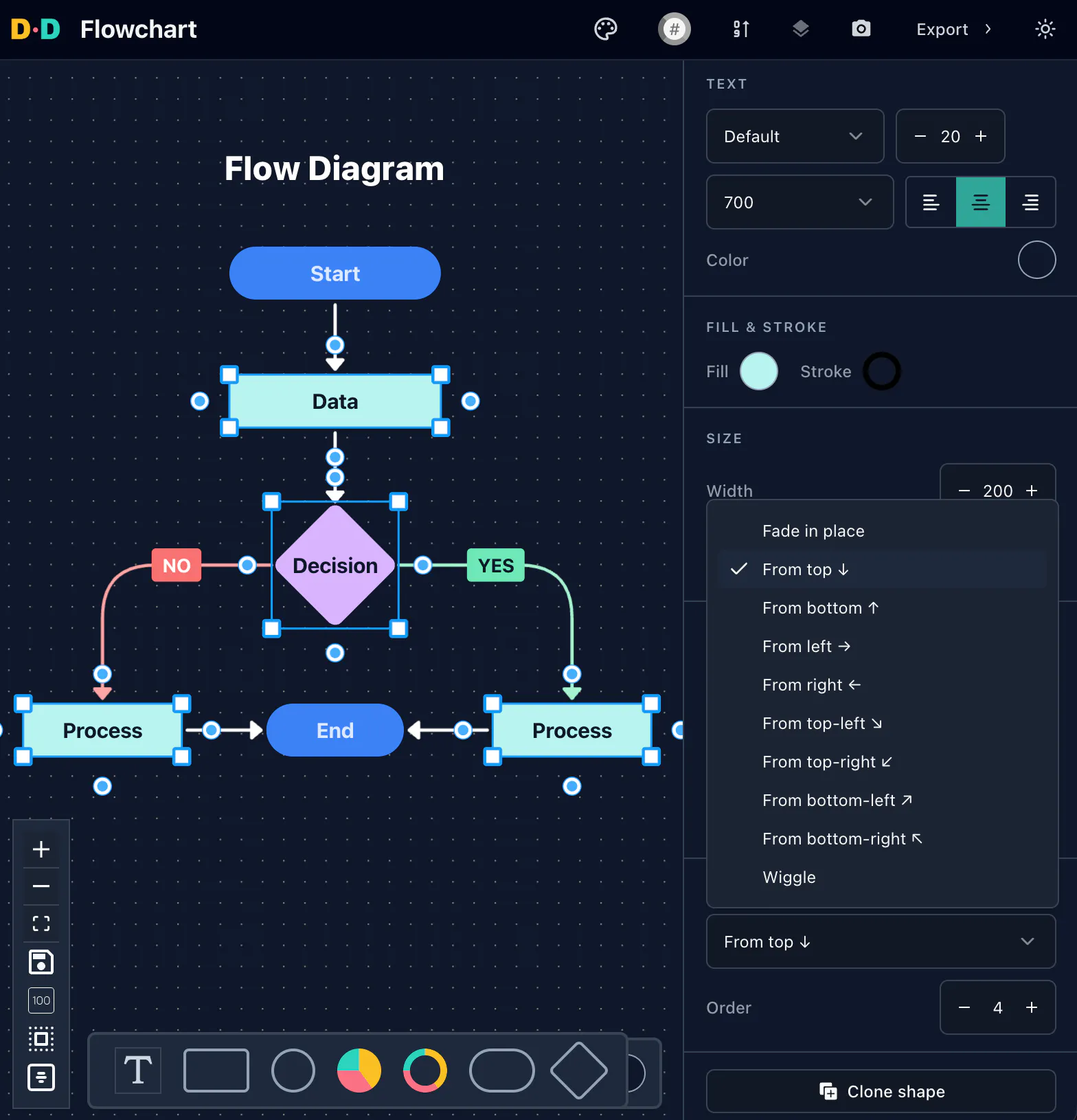
Every shape and connector can have its own entrance animation, or transition.
Select a shape and choose how you'd like it to appear. You might want it to fade into place, slide in from the top or bottom, or use a more playful transition such as Wiggle.
You can mix and match transitions to suit your diagram. For example, a Start node might fade in gently, while the Process nodes slide into place as the flowchart progresses.
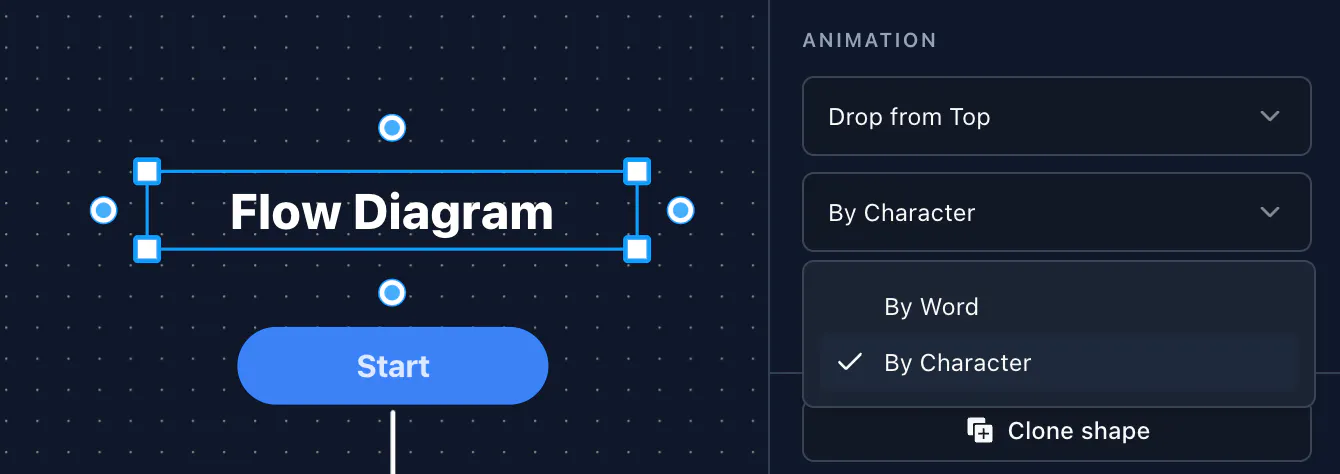
Text elements have their own animation options, too.
Rather than revealing an entire sentence at once, you can animate it word by word or character by character, with text sliding in from the top or bottom.
This is particularly useful for headings, labels, or short explanations that you want your audience to read as they appear.
You don't need to use a different transition for every element. In fact, keeping animations consistent often makes a flowchart easier to follow.
Control when elements appear
Now that we've decided how the elements appear, let's decide when they should appear.
In Diagrams.Design, animation order is controlled by simple numbers assigned to shapes and connectors.
An element assigned 1 animates first, followed by 2, then 3, and so on.
For our flowchart, we can start with the heading, followed by the Start node, its connector, the first Process node, and finally the Decision node.
But what happens when our flowchart branches into two paths?
This is where simultaneous animations come in.
You can assign the same animation order number to multiple shapes or connectors, and they'll animate together.
For example, in our flowchart:
- The two connectors branching out from the Decision node both have animation order 7.
- The Process nodes at the end of those branches both have animation order 8.
- The connectors returning to the final node both have animation order 9.
Instead of animating one entire branch before the other, both paths unfold together.
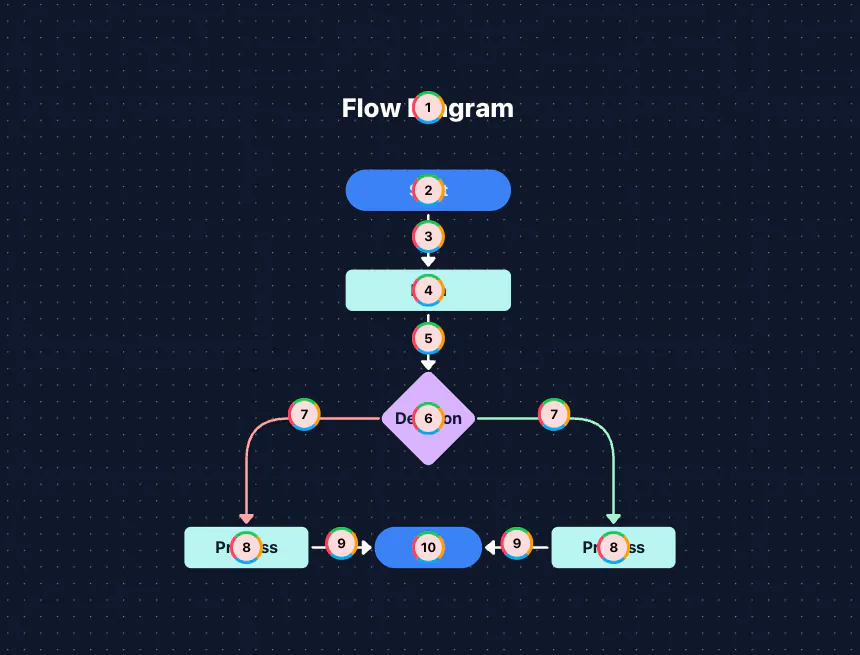
This makes it easier to show parallel processes, alternative decisions, or related steps without manually synchronising individual animations.
And you can change the order at any time simply by updating the numbers.
No timeline required.
Preview and export
Once you've assigned the transitions and animation order, it's time to see everything in action.
Open the Preview to watch your flowchart animate from beginning to end. You can play it back and check whether the sequence tells the story the way you intended.
Perhaps a connector should appear before its destination node, or two related shapes would make more sense appearing together. Just return to the editor, adjust their animation order, and preview again.
When you're happy with the result, head to Export.
Diagrams.Design lets you turn your animated flowchart into a video, including MP4, ready to share in presentations, tutorials, documentation, or social media.
Choose your preferred format and resolution, export your diagram, and you're done.
Bring your diagrams to life
Animating a flowchart doesn't have to mean learning motion-design software or spending hours arranging keyframes on a timeline.
Sometimes, all you need is a way to decide how things appear and the order in which they appear.
That's the idea behind Diagrams.Design: make diagramming and animation part of the same creative process, so you can spend less time managing animations and more time explaining your ideas.
Try Diagrams.Design and bring your next flowchart to life.