
What's New in Diagrams.Design | October 2026
A refreshed workspace, more creative freedom, powerful editing tools, and a faster way to bring your diagrams to life.
We've been busy behind the scenes. Over the past few months, we've been rethinking and rebuilding parts of Diagrams.Design to make creating animated diagrams simpler, faster, and more enjoyable.
Some changes are immediately noticeable. Others are small improvements that make a surprisingly big difference when you're working on a diagram.
From a redesigned workspace and new shapes to reusable colour palettes, smarter editing tools, and improved exports, there's quite a lot to share.
Here's what's new.
1. A refreshed workspace, in light and dark
Your workspace has a new look.
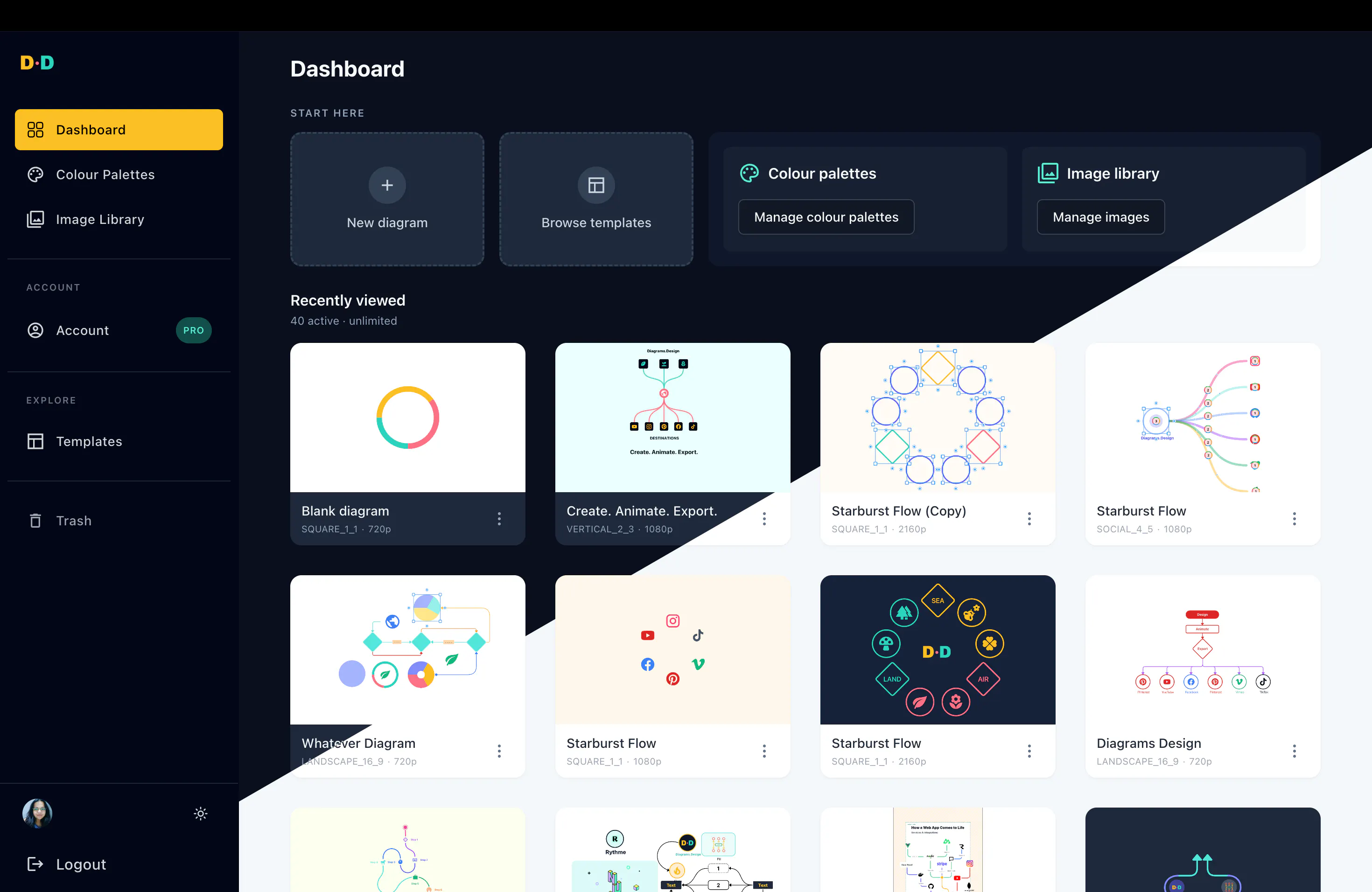
We've redesigned the dashboard to bring your diagrams, templates, colour palettes, and image library together in one place. Everything you need to start creating or pick up where you left off is easier to find.
And because everyone works differently, Diagrams.Design now supports both light and dark modes. Choose whichever feels more comfortable. Your preference carries through the dashboard, editor, and export experience.
2. A cleaner editor that keeps you focused
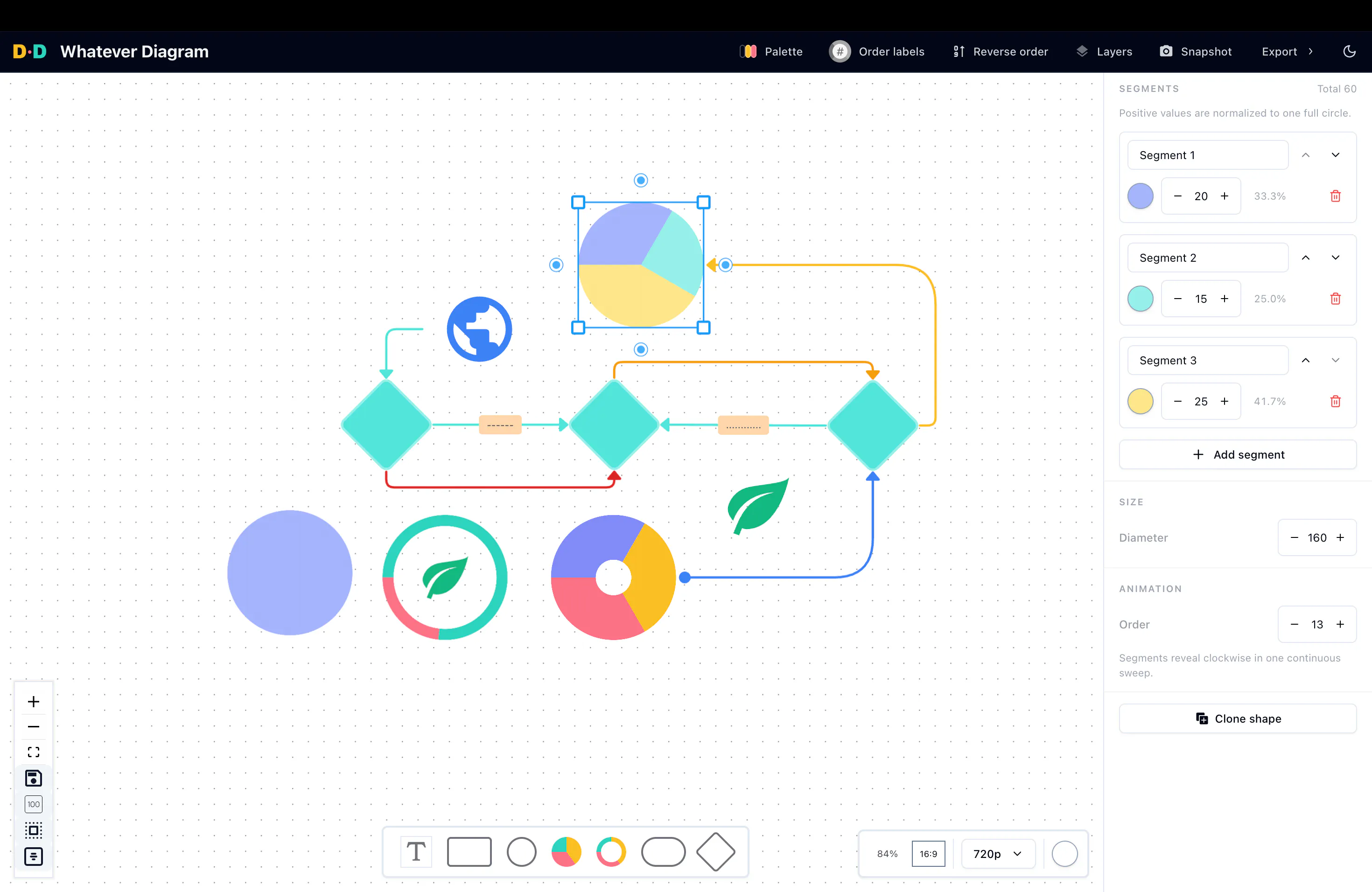
The canvas is where ideas take shape. We've made several improvements to help you stay focused on creating rather than navigating the interface. The updated editor brings shape properties, styling, animation settings and canvas controls closer to where you work.
We've also added a handy option to reverse the animation order of an entire diagram, saving you from having to rearrange each animation individually. And of course, the editor now works in both light and dark modes.
3. Custom colour palettes
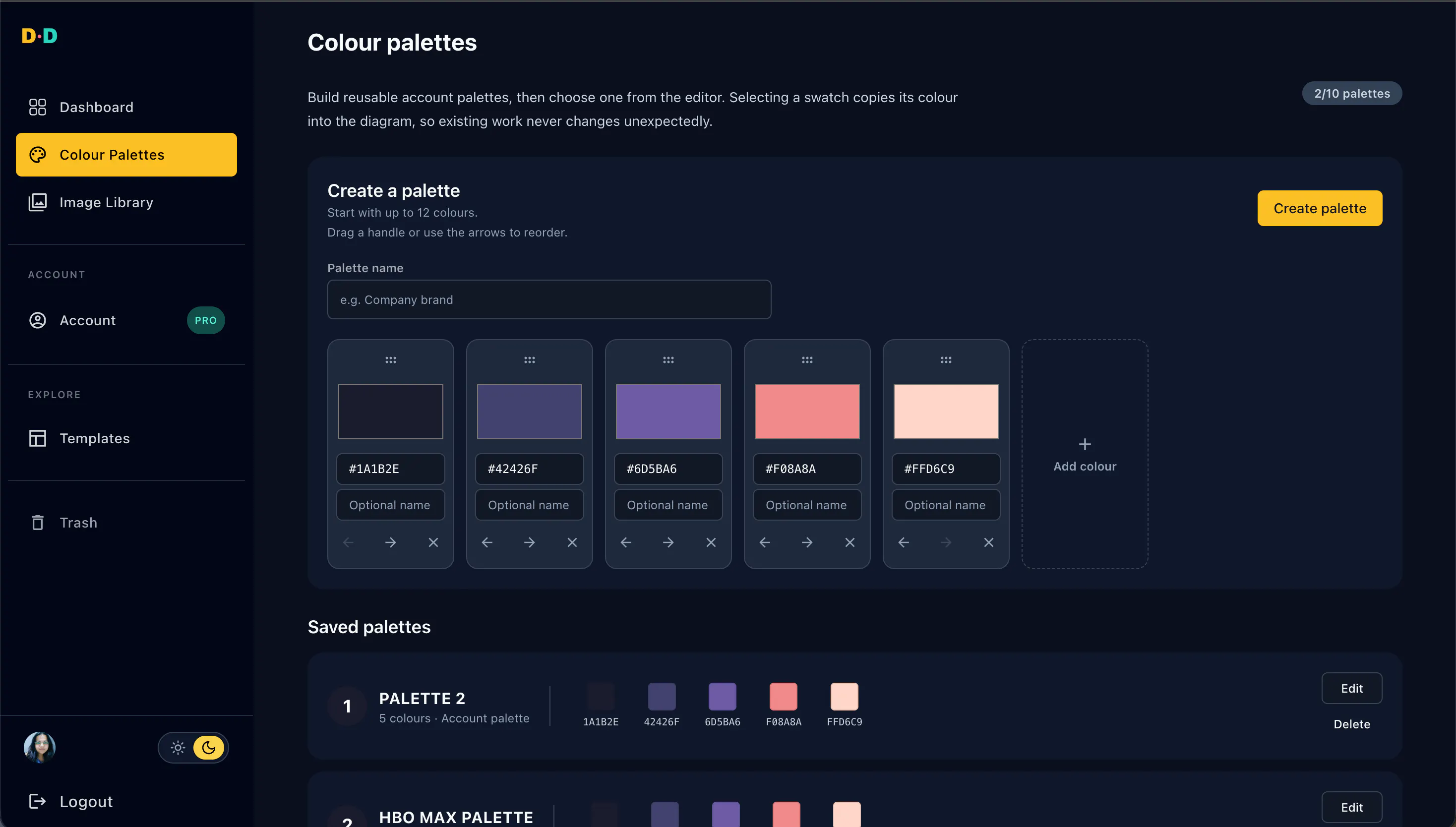
Have a favourite set of colours you use across your projects? You no longer need to recreate them for every diagram. With Custom Colour Palettes, you can create, save and manage your own collections of colours.
Once saved, your palettes are available directly inside the editor, making it easier to keep your diagrams visually consistent. Switching palettes won't unexpectedly change colours already applied to your diagram. Your existing design stays intact until you decide to change it. Whether you're following brand guidelines or simply have a favourite combination that works for your idea, your colours are always within reach.
Custom colour palettes are available with Pro.
4. Bring your own images and logos
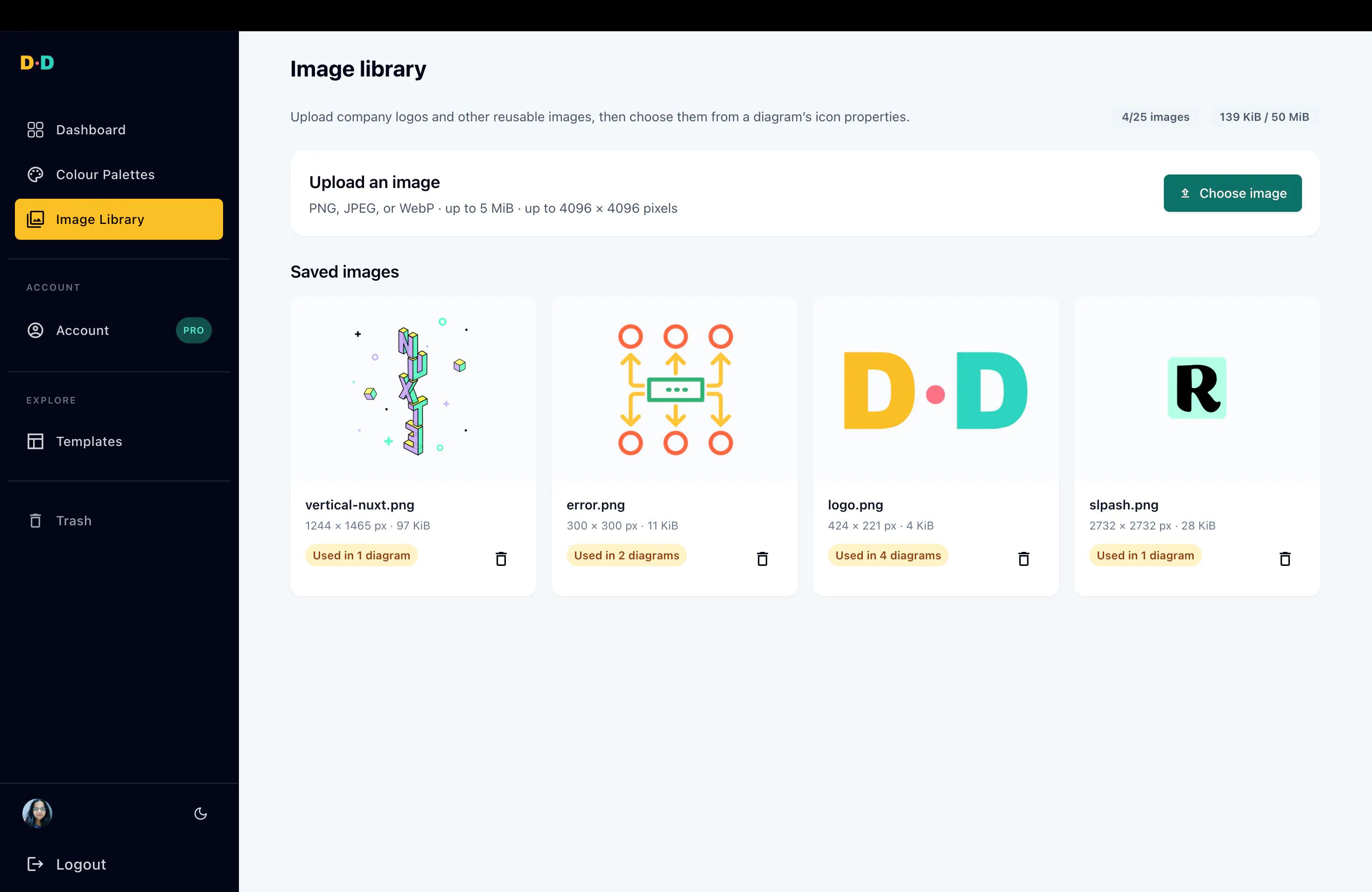
Sometimes a diagram needs more than shapes and arrows. You can now upload your own images and logos to a personal Image Library and reuse them across diagrams.
Once uploaded, your images remain available in your account. You can select them directly from a diagram's icon settings without having to upload the same file again. This is especially useful when creating branded diagrams, product explanations, presentations, or educational content.
The personal image library is available with Pro.
5. New shapes: Pie and Donut

We've introduced two new shapes to help you communicate proportions and comparisons visually. Pie and Donut shapes let you create segmented visuals directly on your canvas.
You can:
- Add and name individual segments.
- Assign colours to each segment.
- Reorder segments to suit your composition.
- Animate the shapes as part of your diagram.
- Adjust the centre opening of a donut shape.
Whether you're explaining a process breakdown, illustrating a distribution or presenting a simple comparison, these shapes give you more ways to tell your story.
6. Small editing tools. Big time savings.
Some of the most useful improvements in this release aren't flashy. They're the tools that save you time when working with multiple shapes. We've expanded the editor's selection and arrangement capabilities.
Copy, clone, and style
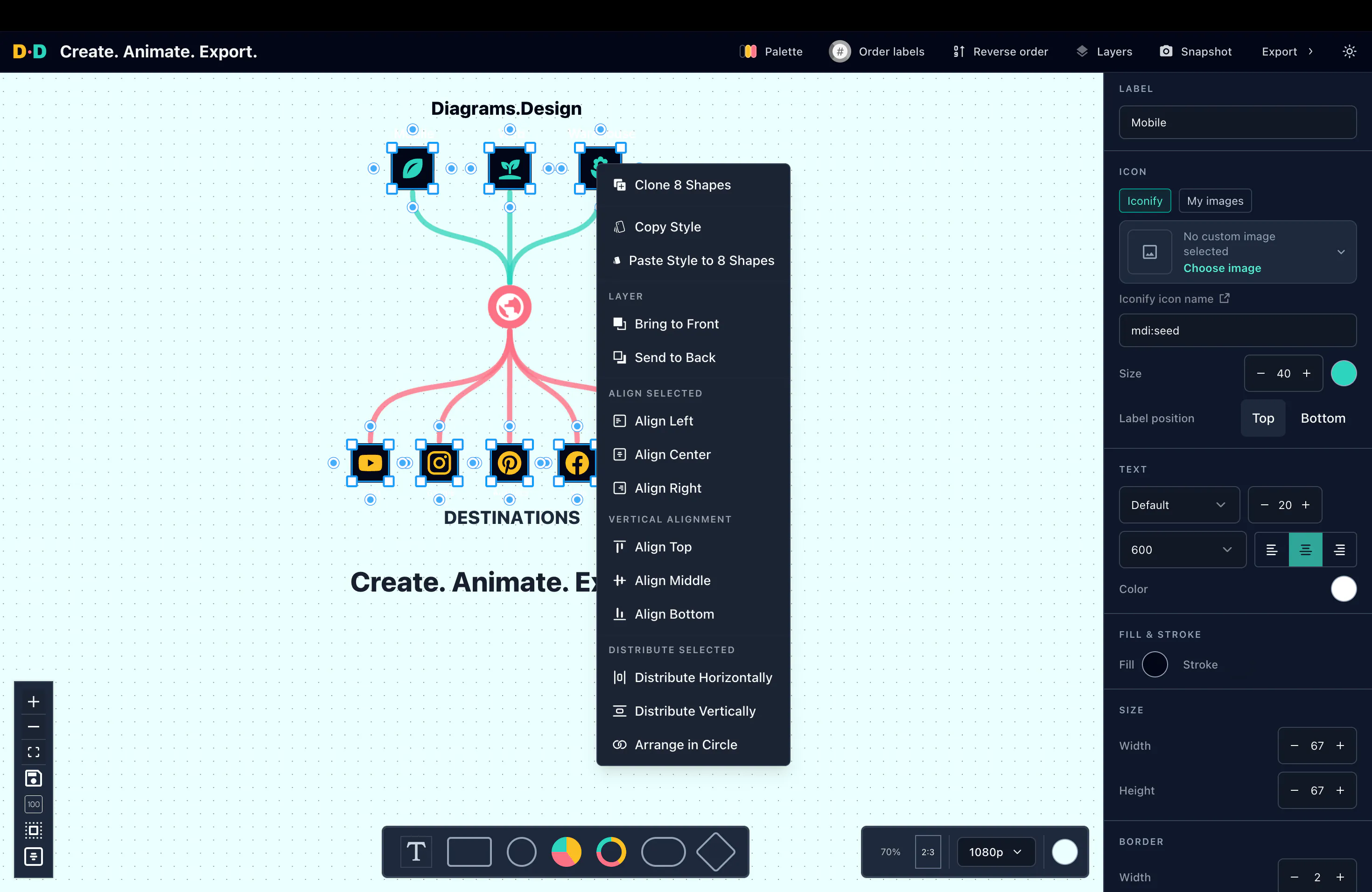
Duplicate selected shapes, copy a shape's styling, and apply that styling to other shapes without recreating it manually.
Align and distribute
Precisely align multiple shapes to the left, centre, right, top, middle, or bottom. Distribute shapes horizontally or vertically to create balanced layouts.
Control layer order
Move shapes forward or backward to control how they overlap on the canvas.
Arrange in a Circle
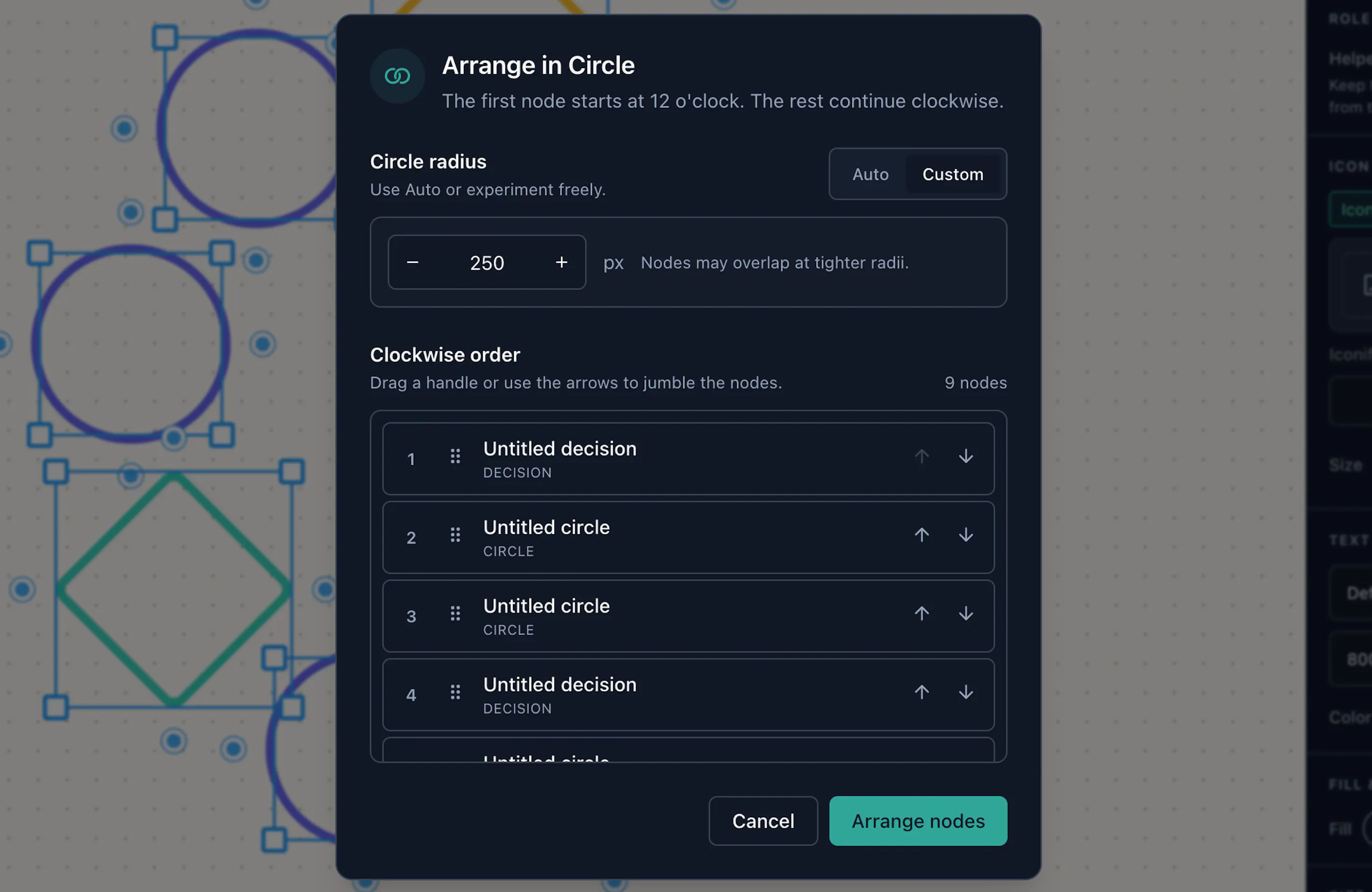
This one deserves a special mention. Select multiple shapes, choose Arrange in Circle, and Diagrams.Design will position them around a circle for you. You can control the circle's radius and clockwise order, making it especially useful for creating radial diagrams, cycles, and circular processes. Less time positioning shapes. More time communicating your ideas.
7. Better exports, from canvas to finished file
Creating a diagram is only half the story. Sharing it should be just as straightforward. We've revised the export experience with a native export engine designed for faster, smoother output. You can export your work as images or videos that are ready to use in presentations, tutorials, articles and other content.
We've expanded the available export resolutions.
- 720p and 1080p are available on Free accounts.
- 2K and 4K are available with a paid plan.
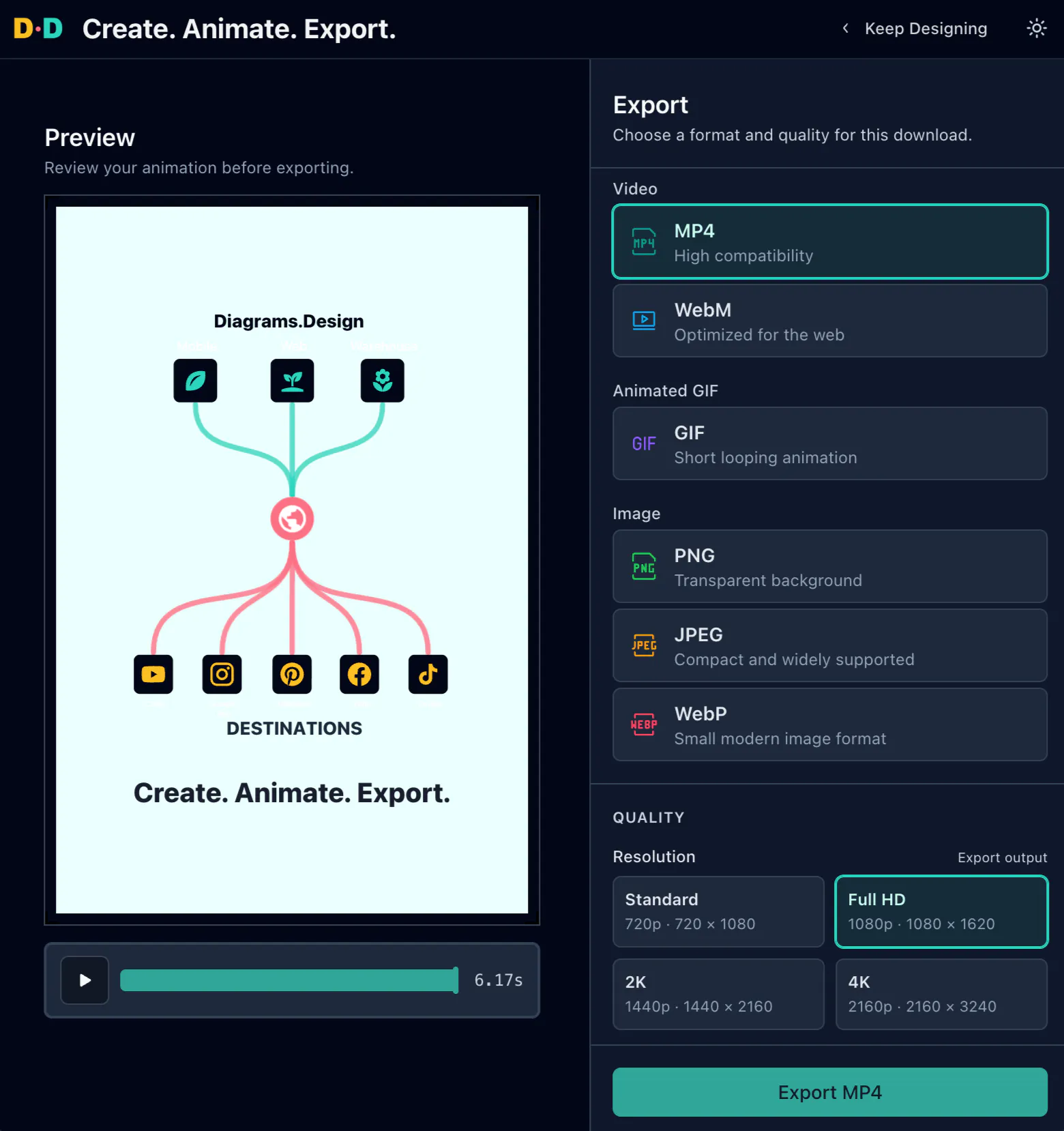
And there's something new: GIF export.
With Pro, short animations under eight seconds can be exported as looping GIFs, making them easy to share in places where a full video isn't necessary. Whether you need a quick visual for a blog post or a high-resolution animation for a presentation or social media, you have more flexibility in how you share your work.

Still the same idea. Just a better way to bring it to life.
When we started Diagrams.Design, the idea was simple: make it easier to create diagrams that don't have to remain static. We wanted to make animation approachable, without complicated timelines or specialised motion-design skills. And that hasn't changed. You still create your diagram, decide the order in which its elements appear and let Diagrams.Design bring it to life.
No messy timelines. Just numbered order.
What has changed is everything around that experience: a more comfortable workspace, more control over your designs, faster editing and better ways to export and share your work. We're excited to see what you create with it.
If it's been a while since you last opened Diagrams.Design, we'd love for you to come back and give it another try.
— The Diagrams.Design Team
