
Why Animating Diagrams Is Different
Have you ever tried animating a flowchart, mind map, or process diagram in a traditional motion design tool?
At first, it seems straightforward. You have a few shapes, some connecting lines, and a sequence in which you want everything to appear. How complicated could it be? But then come the layers. The keyframes. The timeline. And before long, you're spending more time managing the animation than thinking about what the diagram is supposed to explain.
There's nothing particularly wrong with these tools. They're excellent at what they're designed to do. But animating diagrams requires a slightly different approach.
Because when you're animating a diagram, you're not just making things move. You're helping someone understand how things work.

A diagram tells a different kind of story
Think about a typical motion graphics animation. Objects enter and leave the scene, elements move independently while transitions help carry the viewer from one moment to another. But a diagram works differently.
Imagine explaining how an online payment works. You might begin with a customer placing an order, introduce the payment gateway, show how the bank processes the transaction, and finally reveal whether the payment succeeds or fails. Each step depends on what came before it.
You wouldn't necessarily want the customer to disappear when the payment gateway appears. Both elements are part of the same process, and seeing them together helps the viewer understand their relationship which is an important distinction.
In traditional animation, movement often drives the story forward. In diagram animation, the relationships between elements drive the story. And those relationships influence how we approach diagram animation.
How people follow an animated diagram
When someone looks at a diagram, they're trying to make sense of something. They might be following a sequence of events, understanding a system, comparing ideas, or tracing how one decision leads to another. As new information appears, they're connecting it to what they've already seen.
This is where animation becomes useful. Rather than presenting an entire complicated diagram at once, we can introduce its elements gradually.
A shape appears. Then a connector reveals where it leads. Another shape follows, and suddenly a relationship becomes clear. The animation itself guides user through the explanation but that only works when the movement supports the information rather than competing with it.
Over time, I've come to think about this through five simple principles.
Five principles of diagram animation
1. Elements often need to stay visible
In many animated scenes, an object appears, serves its purpose, and disappear. With diagrams on the other hand, we often want the opposite. When explaining a process, earlier steps provide context for later ones. Keeping them visible preserves context and allows the viewer to see how the complete system comes together.
2. Relationships matter more than movement
Consider two shapes connected by a line. Animating the shapes individually might look interesting, but animating the connecting line, going top-to-bottom or left-to-right or vice-versa, communicates order and direction. That relationship could represent a dependency, a sequence, a flow of information, or a cause and effect.
3. Position helps people remember
Imagine following a flowchart where the shapes keep changing positions. Even if the animation looks impressive, you'd probably spend considerable effort figuring out where everything went. That's because the position of an element becomes part of how we understand something. Once a viewer recognises a shape in a particular location, keeping it there provides a useful reference point as the diagram develops.
4. A little emphasis goes a long way
Not every shape needs an elaborate entrance. Sometimes a fade or a slight wiggle is enough. Sometimes a connector line drawing itself is all you need. A subtle transition can draw attention to a new element without distracting from the rest of the diagram. The question I like to ask is: Does this animation help the viewer notice or understand something? If it does, it has a purpose.
5. The logic of the diagram can determine the animation order
This is perhaps the biggest difference in Diagrams.Design. When creating a diagram, we usually know the order in which we want to explain it. First, we introduce the main idea, then reveal its branches, then follow the connections and finally, bring everything together. That sequence already exists in the diagram's logic. So why should we have to translate it into a complicated timeline of layers and keyframes?
What if we could simply tell the diagram which elements should appear first, second, and third and so on? That question became one of the guiding ideas behind Diagrams.Design.
What this looks like in practice
Let's take a simple starburst diagram, sometimes called a radial mind map. It has a central idea connected to several surrounding concepts. Suppose we have few shapes and their respective connecting lines.
In a traditional motion design workflow, we might create the diagram in a vector design tool, import it into After Effects, and organise the individual elements into layers. That's potentially fifteen elements to manage before we've even started animating.
For an experienced motion designer, this is perfectly manageable. But if our goal is simply to explain the relationships in the diagram, it introduces quite a bit of work. So, now consider a different approach.
Animating with Diagrams.Design
In Diagrams.Design, you create the shapes and connectors directly on a canvas. Then you assign numbers to determine their animation order. Elements numbered 1 appear first, followed by elements numbered 2, then 3, and so on. You can even give multiple shapes and connectors the same number when you want them to animate together as shown in an example below. There's no need to build a traditional keyframe timeline.
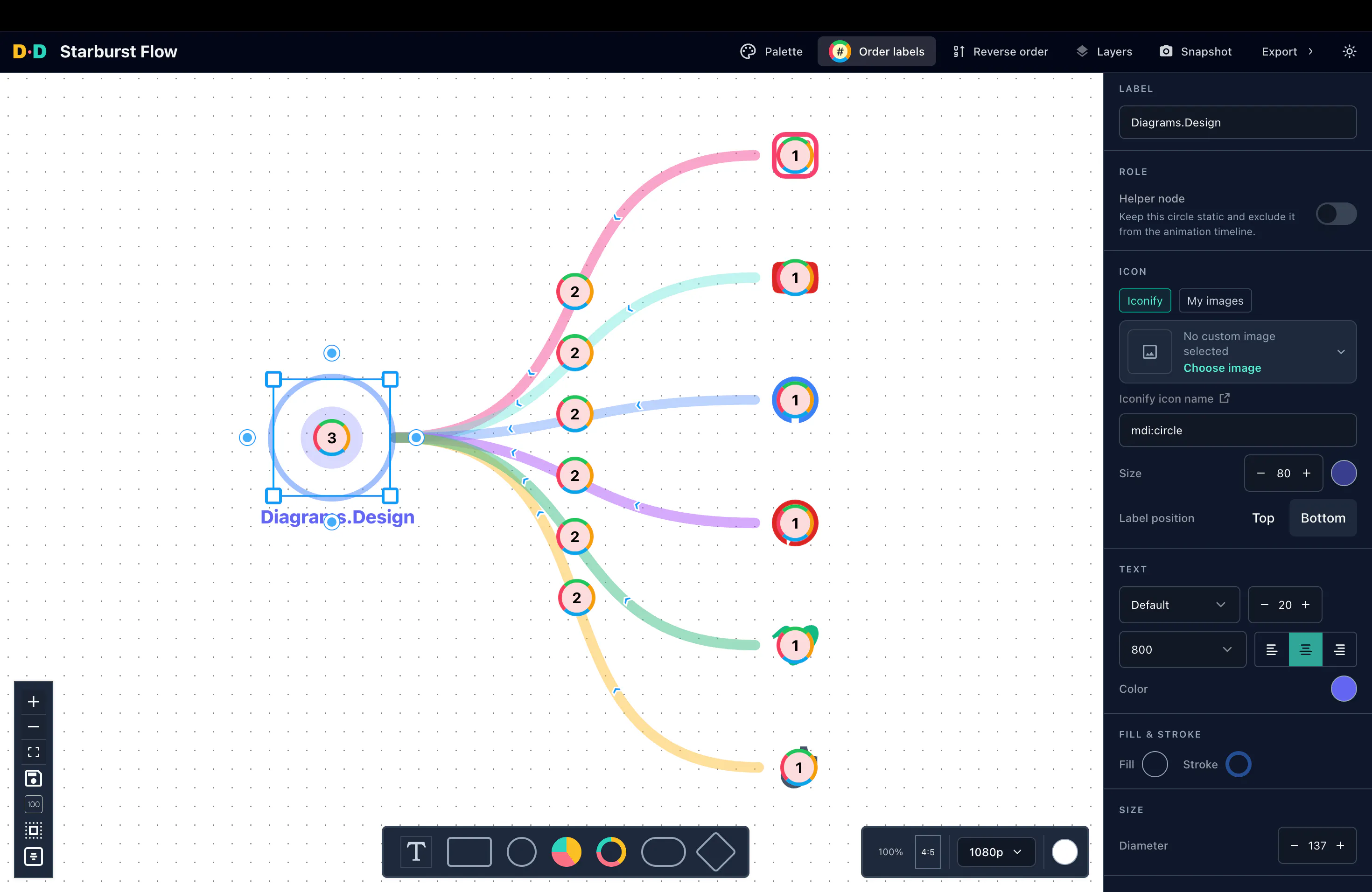
One canvas, numbered animation order, and a sequence that follows the explanation.
You still have control over how elements appear, including transitions for shapes, text, and connectors. But the animation workflow starts with the diagram itself rather than a collection of independent layers. That's the difference I wanted to explore.
Why I built Diagrams.Design
I've loved creating diagrams for years. Since 2018, I've been drawing them to explain ideas, untangle complicated processes and sometimes just think through something that was difficult to put into words.
Most of my early diagrams were designed for print, often on an A4 page. Eventually, I wanted to bring them to life. Not because they needed fancy animation, but because I could see how revealing one part at a time might make the ideas easier to follow.
The problem was the workflow. I'd create a diagram in one application, export it, bring it into another and spend time recreating or organising elements just to add a few transitions. It worked, but it felt unnecessarily complicated for something that seemed so simple.
I wanted a place where I could create a diagram, decide how its explanation should unfold, and export the result as a video. All without switching between applications or managing hundreds of keyframes. That's why I started building Diagrams.Design.
Today, you can use it to create flowcharts, mind maps, process diagrams and other visual explanations, animate them using a numbered sequence and export them as videos, images or gifs. It's built for people who want to communicate ideas visually without having to become motion design experts first.
Animation should make ideas clearer
I don't think every diagram needs animation. A well-designed static diagram can explain an idea beautifully on its own. But when the order of information matters, animation gives us another way to communicate. It lets us control what the viewer sees, when they see it and how each new element relates to what came before.
And I think creating that kind of animation should be as intuitive as creating the diagram itself. That's what I'm building towards with Diagrams.Design. If you have an idea, a process, or a concept that would be easier to explain one step at a time, give it a try.
Create your first animated diagram
— The Diagrams.Design Team
